
Short answer: Wi-Fi usually stops working because the router or modem needs a restart, your internet provider has an outage, or one device has a settings problem. Check whether every device is affected or just one. That tells you where the fault is and which fix to try first.
If you're searching "why is my wifi not working" on your phone's mobile data right now, start with the two-minute check below. Most Wi-Fi problems fall into a few patterns, and each one has a different fix, so finding the right pattern first saves a lot of guesswork.
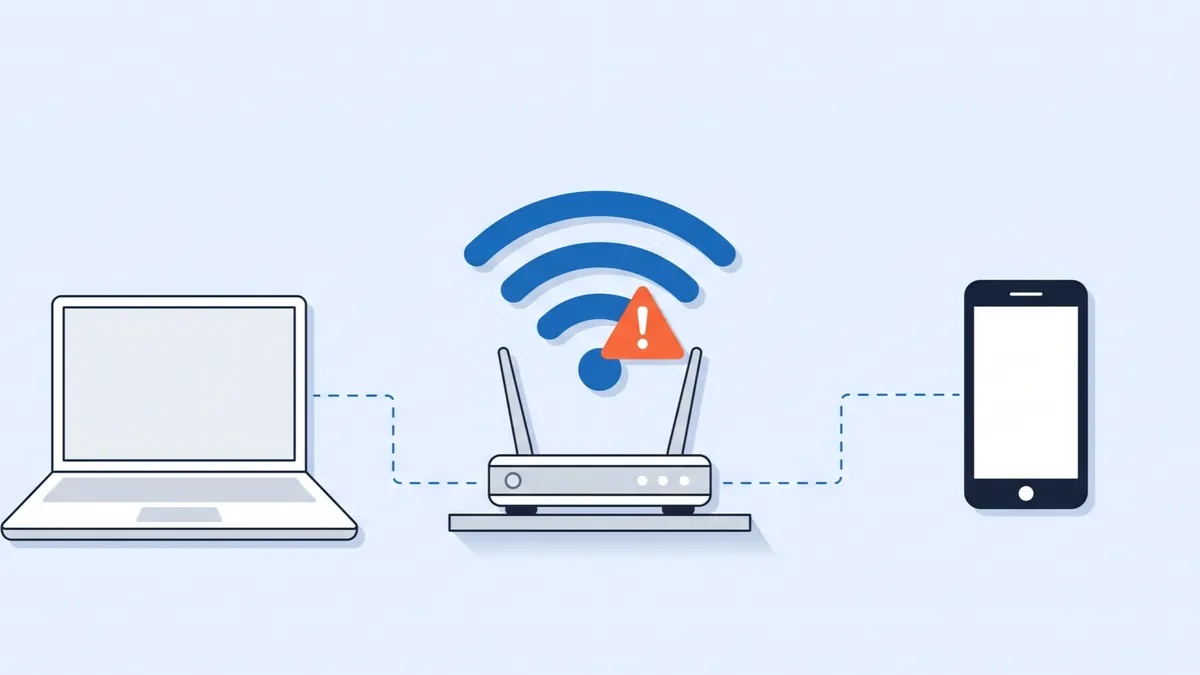
Is it one device or everything? Find the problem in two minutes
Pick up a second device, such as your phone or another computer, and see whether it can get online over the same Wi-Fi. Then match what you see to the table.
| What you notice | Where the problem is | Go to |
|---|---|---|
| No device in the house can get online | Your router, modem or internet provider | Fixes 1–3 |
| Only one phone or computer can't connect | That device's settings | Device steps |
| Devices connect to Wi-Fi, but nothing loads | The modem or your provider | Fixes 1–2 |
| Works near the router, not in other rooms | Weak signal or interference | Weak Wi-Fi section |
| Stopped right after a power cut or storm | Router or modem needs a restart | Fix 1 |
Fixes when no device can get online
If nothing in the house can connect, the problem is almost never your phone or computer. Work through these three fixes in order.
1. Restart the modem and router, in the right order
Your modem brings the internet into the building and your router shares it over Wi-Fi. Some homes have one combined box, often called a gateway. Restarting them clears most temporary glitches, but the order matters.
- Unplug the power cable from the modem and the router (or the gateway) and wait 30 to 60 seconds.
- Plug the modem back in first. Wait two or three minutes, until its internet or online light is steady.
- Plug the router back in and give it another two minutes.
- Reconnect a device and try loading a website.
2. Check if the internet is down in your area
If a restart didn't help, your provider may have an outage. Use your phone's mobile data to check your provider's app or service status page, which usually shows outages by address and an estimated repair time. Outage-tracking websites that collect reports from other users can also tell you whether people nearby have the same problem.
If there's an outage, there's nothing to fix at home. Wait for your provider. Most providers let you sign up for a text when service is restored.
How long do internet outages usually last?
It depends on the cause. Planned maintenance and small faults are often fixed within a few hours, while storm damage or a cut cable can take a day or more. Your provider's app or outage line gives the most reliable estimate for your address. If an outage runs for a long time, it's worth asking your provider whether you qualify for a bill credit.
3. Check the router lights and cables
Router lights look different on every model, but on most of them:
- Solid green, blue or white means that part is working.
- Blinking usually means data is moving, or the device is still starting up.
- Red, orange or off on the internet or online light means the modem isn't getting a signal from your provider.
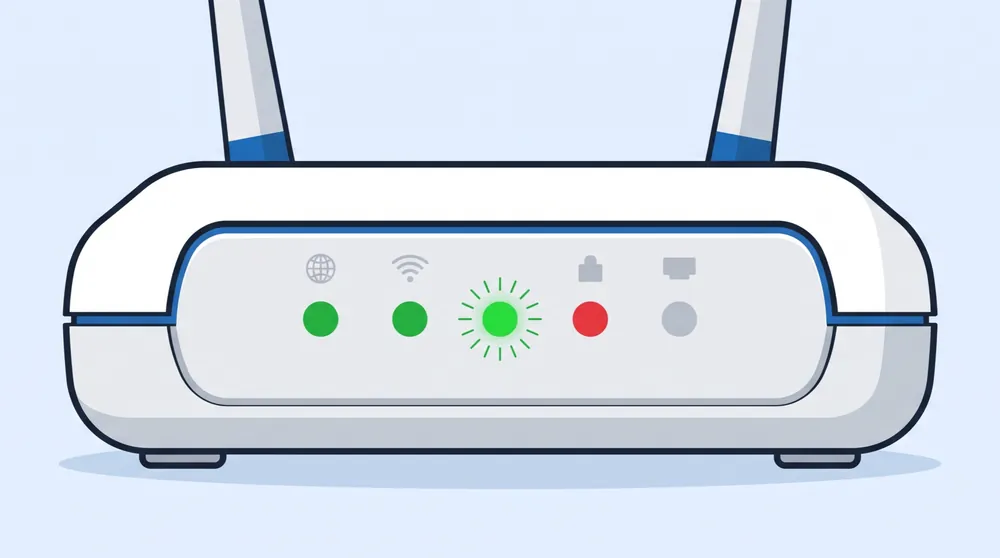
Check that the cable from the wall (coaxial, phone line or fiber) is screwed or clicked in firmly, and that the network cable between the modem and router is seated at both ends. If the internet light stays red after a restart and there's no reported outage, call your provider. The fault is likely on their side of the line.
Don't press the small reset button on the back of the router unless you know your settings. Holding it erases the Wi-Fi name, password and any custom setup, which can leave every device in the house unable to connect.
Fixes when only one device won't connect
If other devices are online and one isn't, the router is fine. Start with the basics on that device: turn Wi-Fi off and on, check that airplane mode is off, and restart it. If that doesn't work, follow the steps for your device below.
On a Windows 11 laptop or PC
- Press Windows + A to open Quick Settings and check that Wi-Fi is on and airplane mode is off. Many laptops also have a Wi-Fi or airplane key, often marked with an antenna or plane icon, that can switch Wi-Fi off by accident.
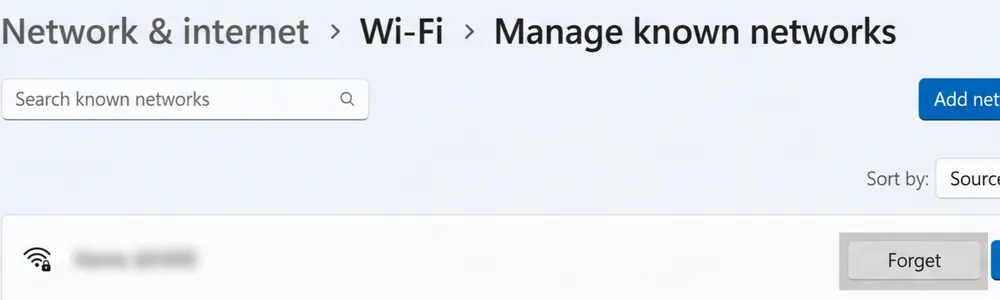
- Open Settings > Network & internet > Wi-Fi > Manage known networks, select your network, choose Forget, then reconnect with your password.
- Run the network troubleshooter under Settings > System > Troubleshoot > Other troubleshooters.
- As a last step, use Settings > Network & internet > Advanced network settings > Network reset. It reinstalls your network adapters and restarts the computer, so you'll need to re-enter Wi-Fi passwords afterwards.
Microsoft's guide to fixing Wi-Fi connection issues in Windows (opens in a new tab) covers adapter drivers and rarer errors.
On a Mac
- Click the Wi-Fi icon in the menu bar and check that Wi-Fi is on and you're connected to the right network.
- Open System Settings > Wi-Fi, click Details next to your network, then click Forget This Network and reconnect.
- Hold the Option key, click the Wi-Fi icon and choose Open Wireless Diagnostics to let your Mac check the connection.
Apple's article on what to do if your Mac isn't connecting to the internet over Wi-Fi (opens in a new tab) has further checks, such as date and time settings and VPN software.
On an iPhone
- Open Settings > Wi-Fi, turn Wi-Fi off and on, and check that you've chosen your home network.
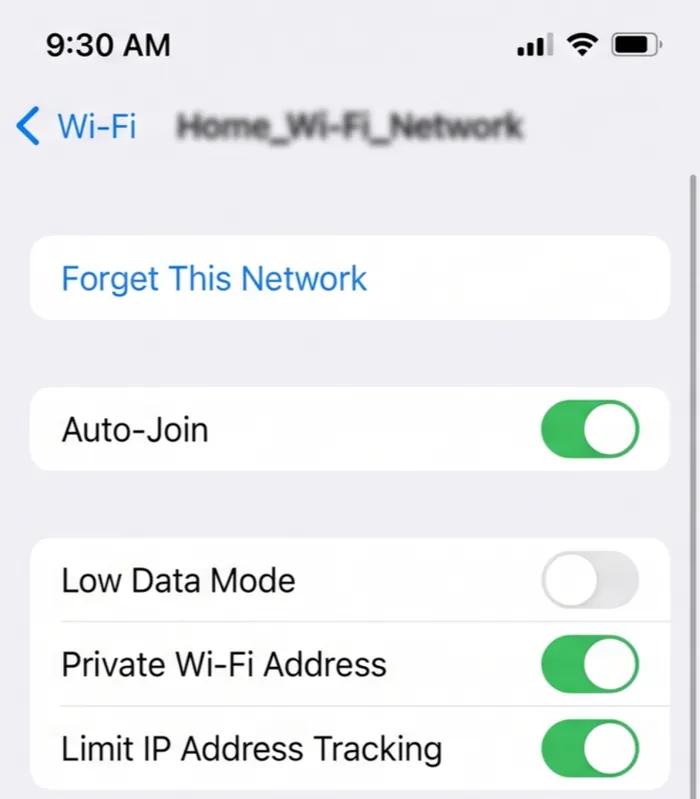
- Tap the i button next to the network, tap Forget This Network, then rejoin it.
- If that fails, go to Settings > General > Transfer or Reset iPhone > Reset > Reset Network Settings. This erases saved Wi-Fi passwords, so have yours ready.
See Apple's guide for when you can't connect to Wi-Fi on your iPhone or iPad (opens in a new tab).
On an Android phone
Menu names vary by phone maker, but the steps are the same.
- Open Settings, then Network & internet or Connections, and turn Wi-Fi off and on.
- Tap your network and choose Forget, then reconnect with your password.
- If it still fails, look for Reset Wi-Fi, mobile & Bluetooth or Reset network settings in the reset options. It also erases saved Wi-Fi passwords.
Google's help on connecting to Wi-Fi networks on Android (opens in a new tab) shows the exact menus for Pixel phones.
Why is my Wi-Fi connected but there's no internet?
Your device can be connected to Wi-Fi while the router has no internet to share. Your phone or computer may say "Connected, no internet" or "No internet connection" under the network name.
- If every device shows it, the modem or your provider is the problem. Go back to fixes 1 and 2.
- If only one device shows it, forget the network and reconnect, then turn off any VPN while you test, because some VPNs block the connection when they fail.
Why is my Wi-Fi slow or weak in some rooms?
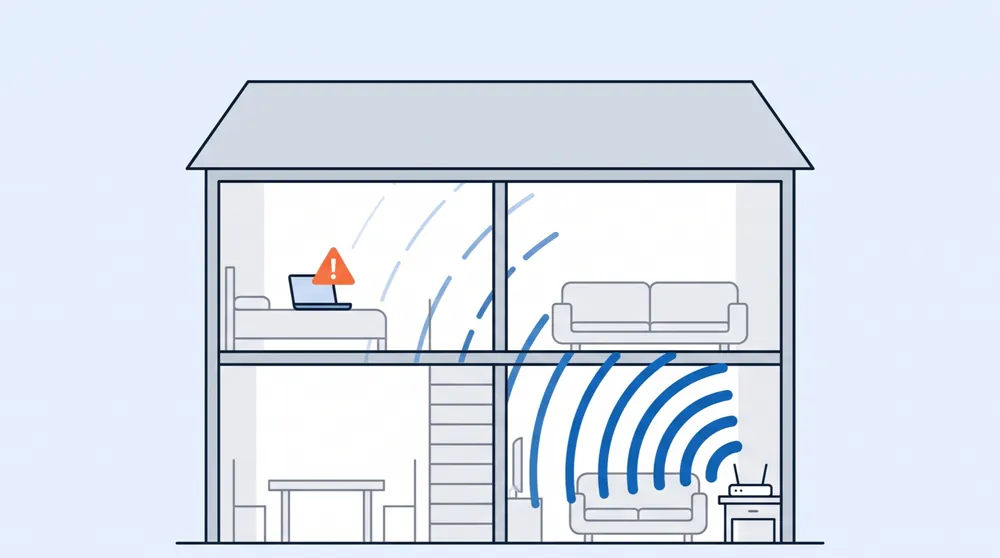
If Wi-Fi works near the router but drops or crawls elsewhere, the signal isn't reaching. Walls, floors, mirrors and large metal objects all weaken it, and microwaves and some cordless phones can interfere.
- Move the router to a central, raised spot in the open, not inside a cabinet or on the floor.
- Most routers offer two bands. 5 GHz is faster but shorter-range. 2.4 GHz reaches further but is slower and more crowded. Try the other band in rooms with weak signal.
- For larger homes, a mesh Wi-Fi system covers the building far more evenly than a single router.
- If several people stream or video call at once, a slower internet plan can feel like broken Wi-Fi. Run a speed test when the house is quiet and compare it with a busy evening.
Why did my internet just stop working all of a sudden?
When Wi-Fi was fine an hour ago and has stopped for no obvious reason, the usual culprits are:
- An outage in your area (fix 2).
- A brief power cut or storm that left the router or modem stuck (fix 1).
- A router that overheated or froze after weeks of running. A restart fixes it, and good ventilation stops it happening again.
- A changed Wi-Fi password. If someone in the house changed it, every device needs the new one.
- A software update on one device that changed its network settings (the device steps above).
If your Wi-Fi is back but the printer still says offline, it may have lost its connection during the outage. Our guide to fixing an offline printer walks through reconnecting it.
How often should I replace my router?
A common rule of thumb is every four to five years. Replace it sooner if it no longer gets security updates from its maker, if it needs restarting every few days to keep working, or if it doesn't support the newer Wi-Fi standards your devices use. If your provider supplies the router, ask them for a newer model before buying your own.
When should you call a technician?
It makes sense to get help when:
- The internet light is normal and there's no outage, but devices still can't connect.
- One device won't connect even after a network reset.
- Wi-Fi keeps dropping, or some rooms never get a usable signal.
- You're setting up a new router or mesh system and want it done securely.
Our Wi-Fi and network support technicians help with routers, weak coverage and devices that won't connect. If the fault is on your provider's side, we'll tell you, so you know exactly who to call.
Computer slow even with good Wi-Fi? Read: Why Is My Computer Running Slow? 9 Hidden Causes and How to Fix Each One
KeyBridge Web Solutions LLC is an independent service provider. We are not affiliated with, authorized by or endorsed by Microsoft, Apple, Google or any internet provider or router maker. Brand and product names are used only to describe the devices and software we support.