
Short answer: slow computers are generally limited by their software, not their age. Common causes include too many programs opening when you turn on your machine, a nearly full drive, tasks running in the background, incomplete updates, overheating or a virus. Notice whether it's always slow or only in one application, then fix that cause.
In response to "why is my computer running slow?": many things can cause it, but nearly all can be fixed without spending money. Here's how our techs check a slow computer, in order. Diagnosing first saves you from trying fixes that don't apply.

How do I find out what is slowing down my computer?
Start by noticing when it's slow. That alone points to the likely cause.
| What you notice | Likely cause | Go to fix |
|---|---|---|
| Slow from the moment it starts up | Too many startup programs or waiting updates | 2 and 5 |
| Slow all the time, with the disk busy | A nearly full drive or an old hard drive | 3 and 9 |
| Fast at first, then slows down and the fans get loud | Overheating | 7 |
| Only the web browser is slow | Too many tabs or extensions | 8 |
| Suddenly slow, with pop-ups or new toolbars | Malware or unwanted software | 6 |
| Slow since a recent update | An update that hasn't finished | 5 |
Next, take a look at what the computer is currently processing. Both Windows and macOS include a built-in application that shows you this.
On Windows 11: Task Manager
- Press Ctrl + Shift + Esc to open Task Manager.
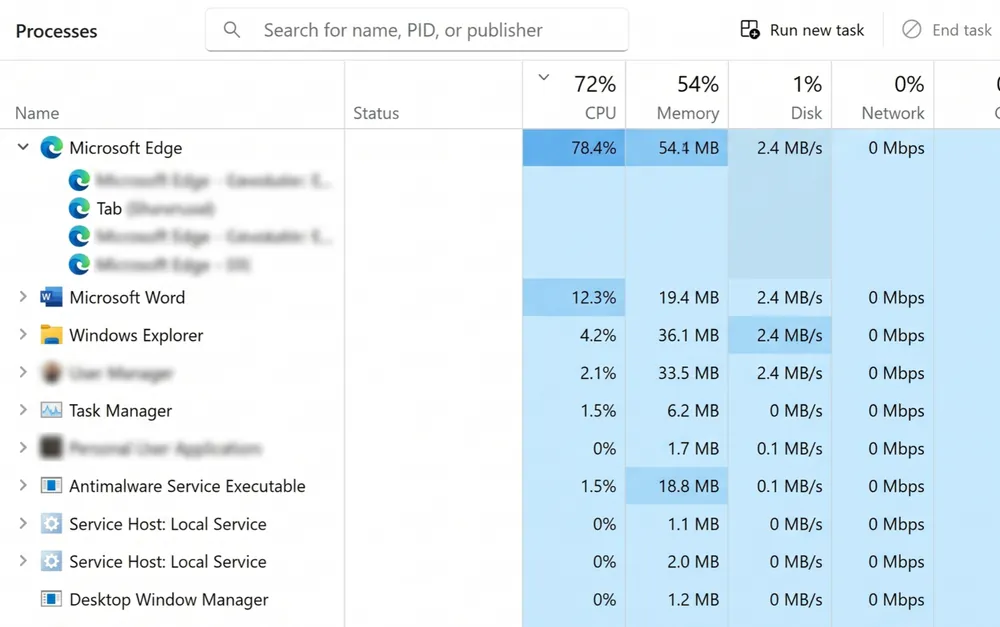
- On the Processes page, click the CPU, Memory and Disk column headings to order the list by each category.
- Identify programs that stay at the top of the list when you aren't actively using them. These are your suspects.
- On the Performance page, find Disk 0 and click it. Its label shows what kind of drive you have, SSD or HDD. This is important for fix 9.
On a Mac: Activity Monitor
- Press Cmd + Space, type Activity Monitor and press Return.
- On the CPU tab, click the % CPU column to order it, so you can see what is used most heavily while your computer sits idle.
- On the Memory tab, look at the Memory Pressure chart. Green means your Mac has enough memory. Yellow or red means it may be short.
Apple's Activity Monitor User Guide (opens in a new tab) explains every column in more detail.
How do I fix the slowness of my computer? 9 causes and fixes
Work through these in order. The first few take minutes and solve most cases.
1. It hasn't had a proper restart, or it's saving power
When computers sleep for weeks at a time, uncompleted processes and unfinished updates pile up. On Windows, the Shut down command doesn't completely clear memory because of the Fast Startup feature, but the Restart command does.
- Windows 11: select Start > Power > Restart. Next, go to Settings > System > Power & battery and, if your laptop is plugged in, change Power mode to Best performance. Battery saver purposely slows down performance.
- Mac: from the Apple menu, click Restart. If you're using a MacBook, make sure Low Power Mode is turned off under System Settings > Battery.
2. Too many programs start with the computer
Chat programs, update tools, cloud backup services and printing software often start with your computer and stay active all day. Each one uses a portion of your computer's memory.
- Windows 11: open Settings > Apps > Startup and turn off any applications you don't need at logon. The same list appears on Task Manager's Startup apps page, along with a Startup impact rating for each one.
- Mac: go to System Settings > General > Login Items (called Login Items & Extensions in newer versions of macOS), then remove any apps you'd rather not have running when your computer starts up.
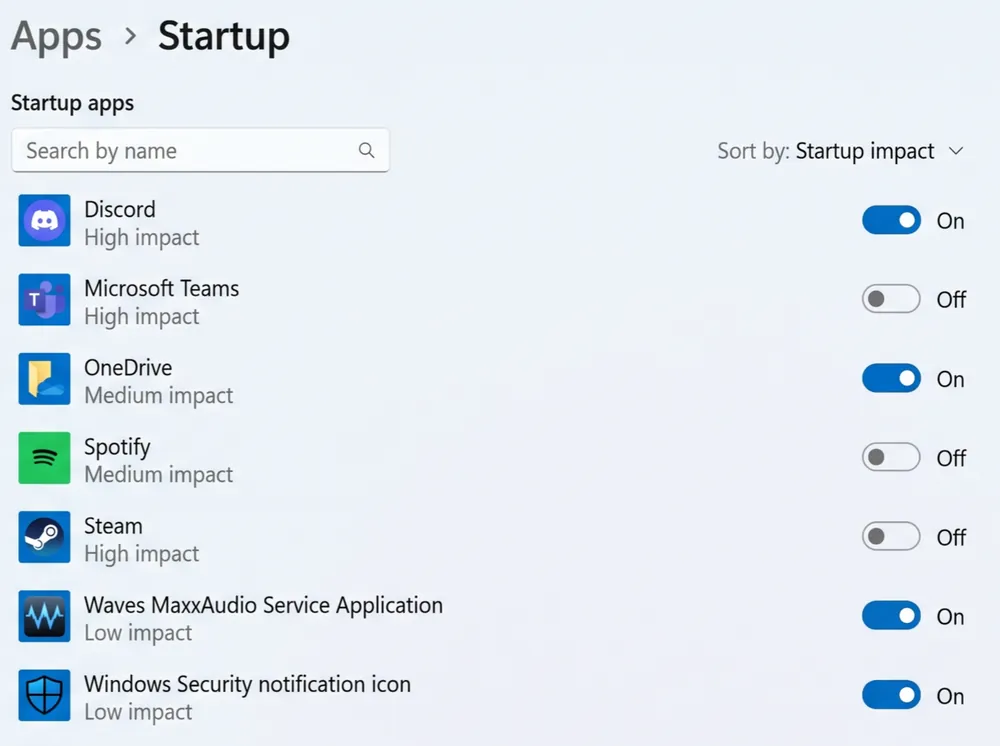
Leave your antivirus and anything you don't recognize running. If unsure, search a program's full name before turning it off.
3. The drive is nearly full
Your computer uses free drive space as working room for temporary files. If the drive becomes very full, your whole system slows down. Try to keep at least 10 to 15 percent of the drive free.
- Windows 11: open Settings > System > Storage to find out what is taking up space. To get rid of temporary files and old downloads, click Cleanup recommendations. Turn on Storage Sense to clear them automatically in future.
- Mac: open System Settings > General > Storage to see what's using space and any recommendations.
Before deleting large items, copy files you want to keep to an external drive or cloud storage.
4. Something is working hard in the background
If Task Manager or Activity Monitor shows a program using a lot of CPU, memory or disk activity while you aren't using it, deal with that program. Common examples are cloud storage syncing thousands of files, a backup running, a stuck update, or an application that has stopped responding.
- Close the program as usual. If it won't close, choose End task in Task Manager, or Force Quit (the ✕ icon) in Activity Monitor.
- If cloud storage is the cause, let it finish syncing, or pause syncing while you work.
- If the same program misbehaves every day, update it or reinstall it.
5. Updates are waiting or haven't finished
A partly installed update can make your computer run slowly for several days. So can going months without updates.
- Windows 11: from Settings > Windows Update, click Check for updates. Install any available updates and restart when prompted. If the slowdown started right after an update, wait 24 hours and restart again, because Windows often finishes background work afterwards.
- Mac: go to System Settings > General > Software Update and install any available updates.
6. Malware or unwanted software
If your computer suddenly slows down and you see unwanted pop-up ads, your browser's home page has changed, or toolbars you didn't install have appeared, you may be infected with malware or adware.
- Windows 11: open Windows Security > Virus & threat protection > Scan options, choose Full scan and select Scan now. If a problem keeps coming back, run the Microsoft Defender Offline scan from the same page. Your computer will restart and scan before Windows loads. Microsoft explains each scan type in virus and threat protection in the Windows Security app (opens in a new tab).
- Mac: look through your Applications folder and your browser extensions for any software you didn't install, then delete it.
Never download "speed up" or "virus cleaner" software from a pop-up window or an advertisement. Many of these pop-ups are the source of the very malware you're trying to fix. The FTC's guide to protecting against, detecting and removing malware (opens in a new tab) explains the warning signs.
7. It's overheating
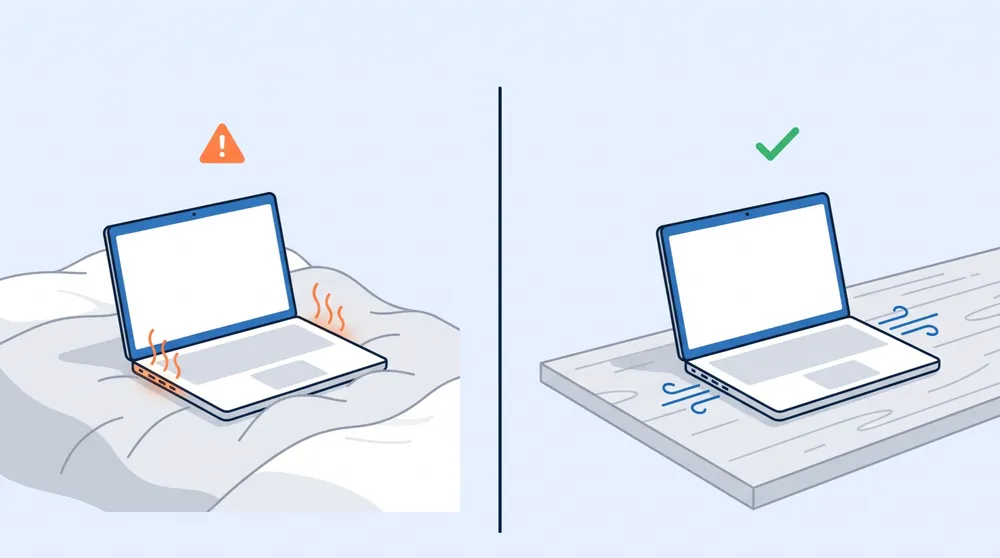
When your processor gets too hot, it reduces its speed to prevent damage. This is called thermal throttling. The sign: your computer runs fast at first, then slows down as the fans get louder.
- Keep laptops on a hard, flat surface, not a bed or sofa that blocks the vents.
- Make sure desktop vents have space around them and aren't facing a wall.
- Dust builds up inside a computer over time. With the computer turned off, clear the vents with short bursts from a can of compressed air, or have the inside cleaned.
8. Too many browser tabs and extensions
If only your web browser is slow, the computer itself is probably working properly. Every open tab and every extension uses memory.
- In Chrome or Edge, press Shift + Esc to open the browser's own task manager, which shows how much memory each tab uses.
- Delete any extensions you aren't using. To see them all, type
chrome://extensionsoredge://extensionsinto the address bar. - Keep your browser up to date, and restart it once a day if you keep lots of tabs open.
- Still slow with only a couple of tabs open? Try the same sites in another browser. If they load quickly there, the problem is your usual browser's settings or extensions, not your computer.
9. The hardware has reached its limit
Still slow after fixes 1 to 8? The computer may simply lack the hardware for how you use it today.
- A hard drive (HDD) instead of a solid state drive (SSD). If Task Manager showed an HDD in the diagnosis step, replacing it with an SSD is typically the biggest single speed improvement an older computer can get.
- Not enough memory. Windows 11 can run on 4 GB of memory, but it lags with several applications open at once. Everyday tasks are much easier with 8 GB or more.
- A very old processor. When the processor itself is the limiting factor, upgrades help very little, and buying a new computer is usually the better value.
How do I clean up my PC to run faster?
Use the built-in tools on your computer: Storage and Storage Sense on Windows, Storage on a Mac (fix 3), startup settings (fix 2), and uninstalling applications you don't use. To remove an application on Windows, go to Settings > Apps > Installed apps. On a Mac, drag the application from the Applications folder to the Trash.
Don't use "PC cleaner", "registry cleaner" or "driver updater" software. Microsoft doesn't support registry cleaners, and many of these programs make problems look worse than they are so you'll pay for a subscription. Some of them are unwanted software themselves. See also Microsoft's tips to improve PC performance in Windows (opens in a new tab).
Why is my computer so slow even though I just got it?
A new computer that seems slow usually isn't faulty. In its first few days, it's busy with work an older computer has already finished.
- First-day updates. New computers often download months of updates straight away. Let them finish, then restart a few times.
- Pre-installed trial software. Many new computers come with trial programs and extra antivirus software that run in the background. Uninstall any you don't plan to use.
- Search indexing and cloud sync. The computer builds a list of your files so you can search them, and cloud storage may be downloading your older files. Both stop once they've finished.
- Entry-level hardware. Budget laptops often have little memory and slow storage. Compare your laptop's specifications with fix 9.
Why is my computer so slow when it starts up?
Some lag in the first few minutes after you log in is normal. Your computer is loading its startup programs, connecting to the network and checking for updates all at the same time. Give it two or three minutes before judging.
If it's still crawling after five minutes, the usual causes are, in order:
- Too many startup programs. This is the most common cause of a slow startup. See fix 2.
- Updates installing. If you see "Working on updates", or your computer restarts by itself, wait for the update to finish. See fix 5.
- An older hard drive. On an HDD, Task Manager often shows the disk at 100% for a few minutes after startup. An SSD (fix 9) usually stops this.
- Several security programs at once. Two antivirus programs scanning at startup compete for resources and slow each other down. Use only one.
Is it my computer or my internet that's slow?
It's worth checking before you change anything. If programs on your computer, such as File Explorer and Word, run quickly but websites and videos are sluggish, your computer is most likely fine and your internet connection is the problem.
- Run a speed test in your web browser, then run the same test on a phone connected to the same Wi-Fi.
- If both devices are slow, restart your modem and router, then compare the results with the speed your internet provider says you should be getting.
- If only your computer is slow, the Wi-Fi signal may be weak where it sits, or its network adapter may be old. Try moving it closer to the router, or follow Microsoft's steps to fix Wi-Fi connection issues in Windows (opens in a new tab).
For connection problems, our Wi-Fi and network support page explains what we can help with.
When should you call a technician?
It makes sense to get help when:
- You've worked through all nine fixes and the computer is still slow.
- You suspect malware, or a scan finds something that keeps coming back.
- You're not sure which programs are safe to remove.
- You want an objective opinion on whether to buy a new computer or upgrade the SSD or memory in the one you have.
Our computer support technicians help with slow, frozen and error-filled Windows PCs and Macs. When the issue is the hardware itself, we'll be straightforward about it, so you don't spend money on repairs that won't solve the problem.
Printer problems too? Read: Why Is My Printer Offline? 7 Proven Fixes, and When to Call a Technician
KeyBridge Web Solutions LLC is an independent service provider. We are not affiliated with, authorized by or endorsed by Microsoft, Apple, Google, Intel, HP or Dell. Brand and product names are used only to describe the devices and software we support.