
Short answer: your printer shows as offline when your computer can't get a reply from it. The printer itself is usually fine. The common causes are a dropped Wi-Fi connection, a printer in deep sleep, a stuck print job, the Windows "Use Printer Offline" setting, or a network address that has changed.
If you're asking "why is my printer offline?" right before an important print job, the fix is rarely complicated. Below are the steps our technicians run through, in order, when a customer calls about an offline printer. Start at fix 1 and stop as soon as your printer comes back.
What does "printer offline" actually mean?
Your computer, router and printer form a chain. "Offline" means one link has broken, so Windows or macOS can no longer get an answer from the printer. The message just doesn't say which link.
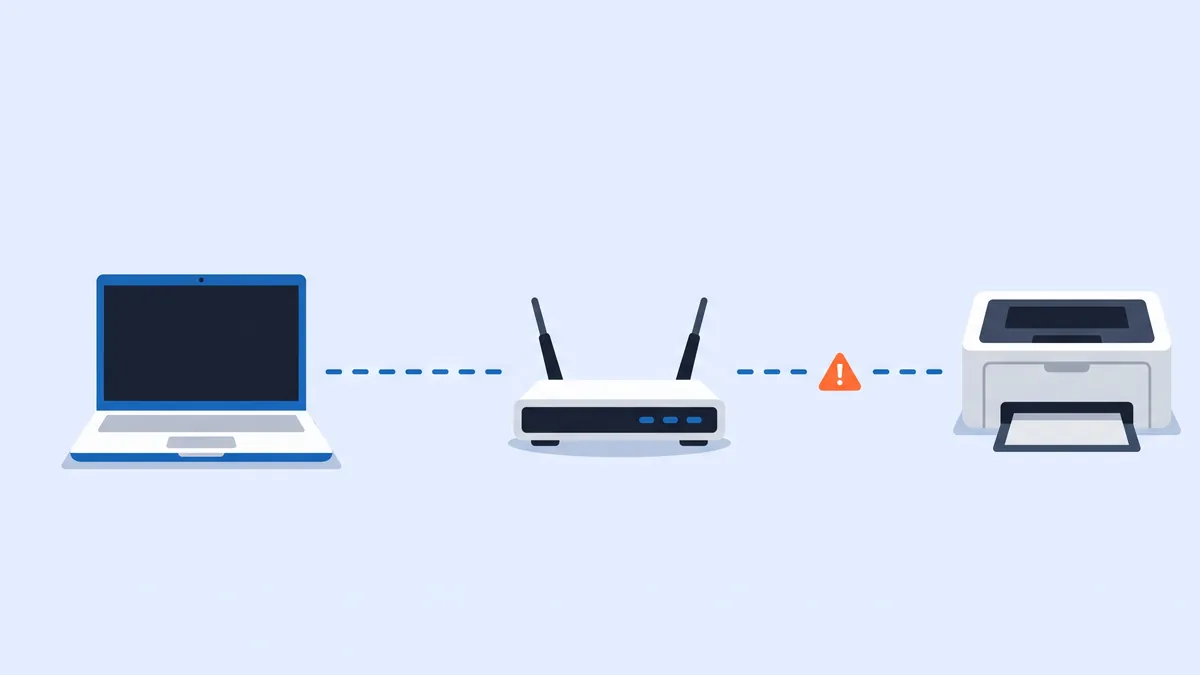
To narrow it down: if a phone or another computer can still print, the problem is on your computer, so jump to the Windows or Mac fixes. If nothing can print, start with fixes 1 to 3.
How do I get my printer back online? Start with these three checks
These work for any printer brand and any computer.
1. Restart everything, in the right order
The order matters. Done the wrong way round, the computer goes looking for the printer before the printer has rejoined the network.
- Turn the printer off with its power button and wait 30 seconds.
- If other devices are also struggling to get online, restart your router too, and wait until its lights settle. That usually takes two to three minutes.
- Turn the printer back on and wait until it shows it's ready, or until its Wi-Fi light stays solid.
- Restart your computer last, then try printing a test page.
2. Make sure the printer and computer are on the same network
Your computer can only reach a printer on its own network. This catches people out after a new router, a visit from the internet provider or a power cut.
- Check the network name on the printer's display, or print a network configuration or wireless test report from its Settings or Wireless menu. Compare it with the Wi-Fi name your computer is using.
- A guest network, or a Wi-Fi extender with its own network name, keeps devices apart. Move the printer or the computer onto your main network.
- Turn off any VPN on your computer while you test. Many VPNs block access to devices on your home network, and printers are one of them.
- If the printer is connected by USB, unplug the cable at both ends, plug it back in firmly, and try a different USB port on the computer.
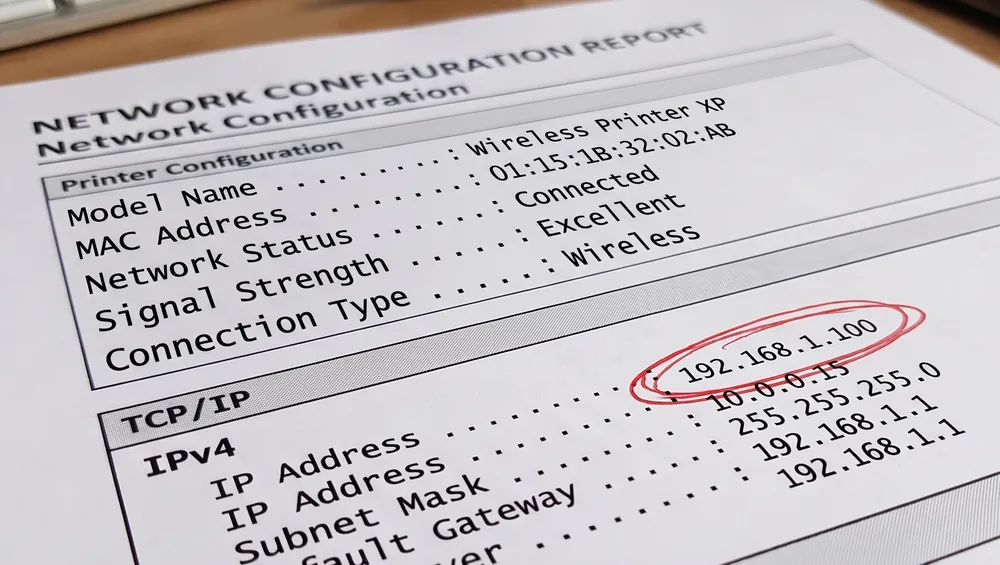
Many printers only use 2.4 GHz Wi-Fi. That's normally fine, because most routers offer both bands on the same home network.
3. Wake the printer up and stop it dozing off
Many printers drop their Wi-Fi connection in deep sleep, and your computer then reports them as offline. Press any button on the printer to wake it, then try printing again.
If that works, open the printer's own menu and find the Sleep, Auto Off or Energy Save setting. Lengthen the delay or turn off automatic power-off. Also clear any paper jam, open cover or ink warning on the display, because some printers stay offline until you do.
How to fix an offline printer on Windows 11
These steps use Windows 11 menu names. On Windows 10 you'll find the same options under Settings > Devices > Printers & scanners.
4. Turn off "Use Printer Offline" and clear the print queue
One stuck document can hold up the whole queue. Windows also sometimes switches a printer into offline mode and never switches it back.
- Open Settings > Bluetooth & devices > Printers & scanners and select your printer.
- Select Open print queue.
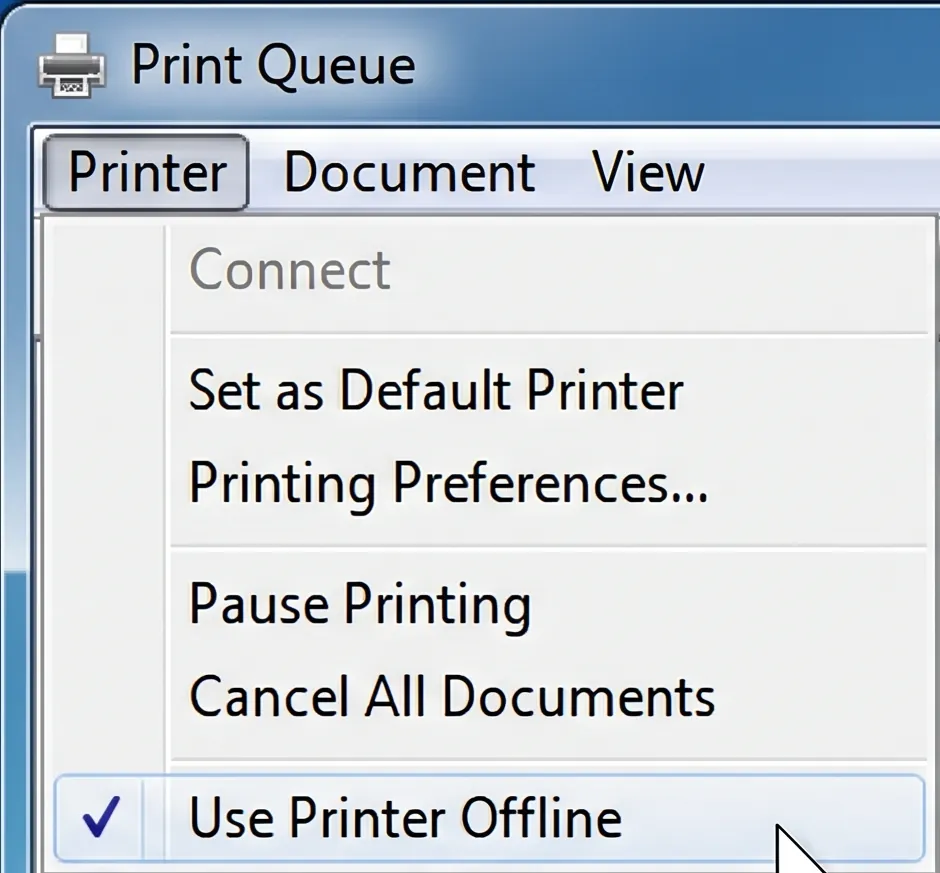
- Open the Printer menu at the top of the queue window. If Use Printer Offline has a tick next to it, click it to remove the tick.
- In the same menu, choose Cancel All Documents and confirm.
- Close the queue and select Print test page on your printer's settings page.
5. Remove duplicate printers, then add the printer again
After an update, Windows sometimes creates a second entry for the same printer, often ending in "(Copy 1)". Your documents keep going to the old, dead entry.
- In Printers & scanners, look for more than one entry for your printer. If you find a copy, try printing to it. If it works, remove the old entry and use the copy.
- If there's only one entry, select it and choose Remove.
- Restart the computer, go back to Printers & scanners and select Add device. When your printer appears, select Add.
- If Windows keeps switching to the wrong printer, turn off Let Windows manage my default printer under Printer preferences.
If Windows can't find the printer at all, go back to fix 2.
6. Restart the Print Spooler
The Print Spooler is the Windows service that passes documents to your printer. When it freezes, every printer can look offline.
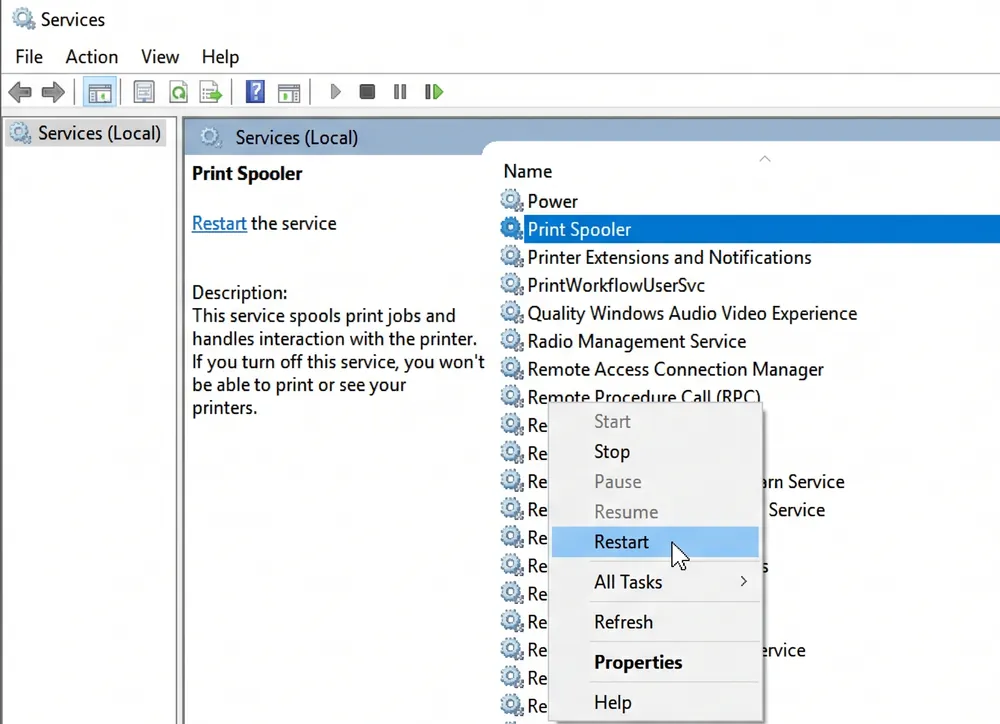
- Press Windows + R, type
services.mscand press Enter. - Scroll down to Print Spooler, right-click it and choose Restart.
- If jobs still won't clear, right-click Print Spooler and choose Stop. In File Explorer, go to
C:\Windows\System32\spool\PRINTERSand delete the files inside that folder, but not the folder itself. Then return to Services, right-click Print Spooler and choose Start.
Windows also has a printer troubleshooter under Settings > System > Troubleshoot > Other troubleshooters. On newer versions of Windows 11 it opens in the Get Help app.
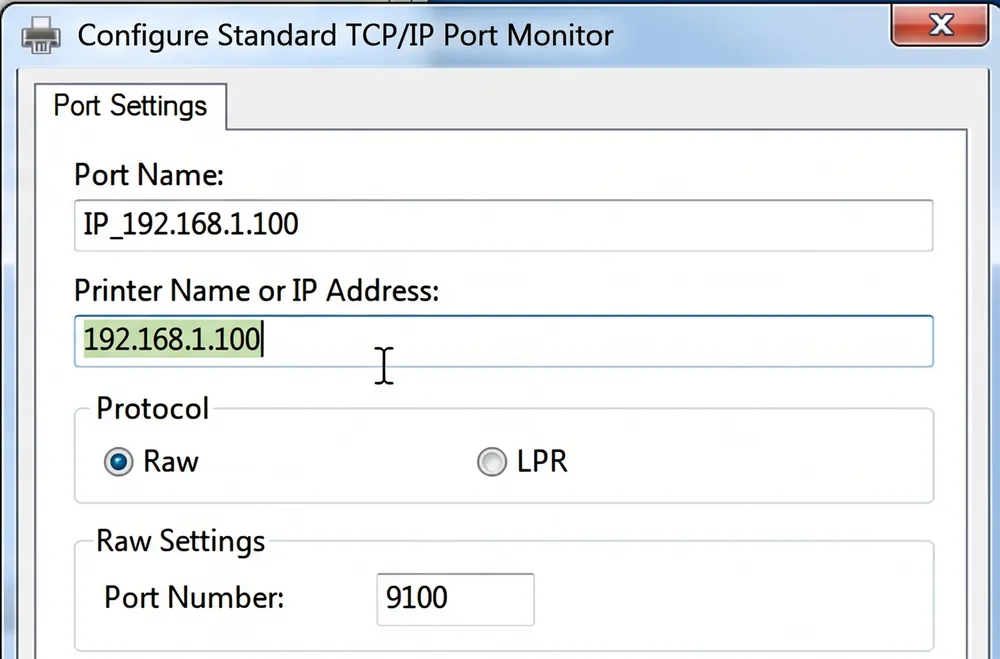
7. Check whether the printer's IP address has changed
This is the most common reason a printer keeps going offline. Your router gives every device a network address, and it can change after a restart or power cut. If Windows set the printer up with the old address, it's knocking on the wrong door.
- Print a network configuration report from the printer (see fix 2) and note its IP address. It looks something like
192.168.1.45. - In Printers & scanners, select your printer, then Printer properties, and open the Ports tab.
- Find the ticked port. If it shows an IP address that doesn't match the report, select Configure Port and enter the new address. Some ports don't show an address at all, and in that case removing and re-adding the printer (fix 5) does the same job.
- To stop it happening again, reserve the printer's address in your router's settings. Routers usually call this DHCP reservation or address reservation.
How to fix an offline printer on a Mac
These steps use macOS Ventura and later. On older versions, open System Preferences > Printers & Scanners instead.
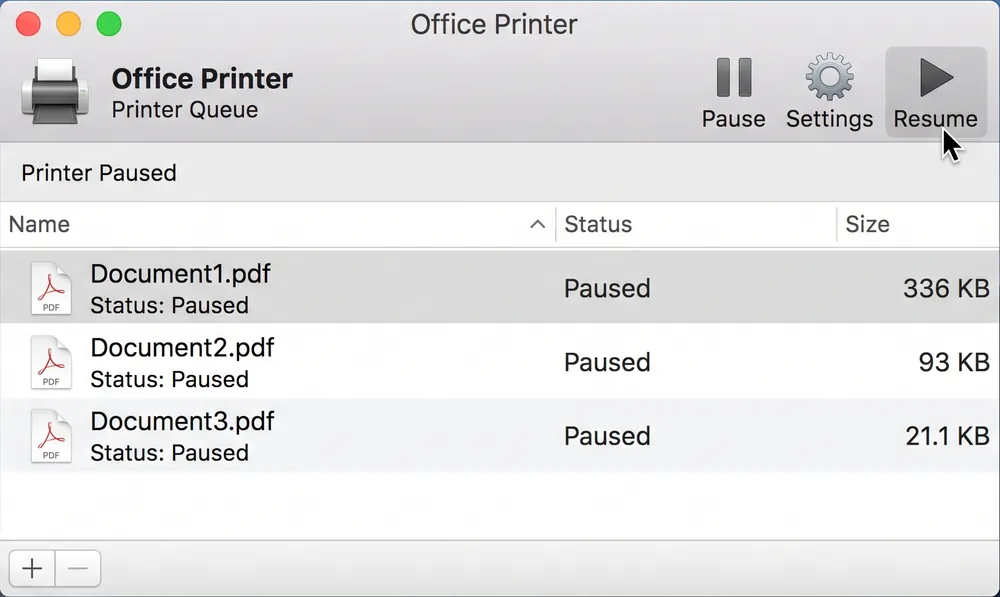
4. Resume the print queue
- Open the Apple menu > System Settings > Printers & Scanners and select your printer.
- Click Printer Queue.
- If the queue says the printer is paused, click Resume.
- Delete any stuck jobs by selecting them and clicking the delete (✕) button next to each one.
5. Remove the printer and add it again
- In Printers & Scanners, select the printer and click Remove Printer.
- Restart your Mac.
- Go back to Printers & Scanners, click Add Printer, Scanner, or Fax, choose your printer from the list and click Add.
If the Use menu offers AirPrint, choose it. It doesn't rely on extra driver software.
6. Reset the printing system (last resort)
This removes every printer and print job from your Mac, so try fix 5 first.
- In Printers & Scanners, Control-click anywhere in the list of printers and choose Reset Printing System.
- Confirm, then add your printer again as in fix 5.
7. Add the printer using its IP address
If your Mac can't find the printer by itself, or it keeps dropping off, connect to it directly by address.
- Print a network configuration report from the printer (see fix 2) and note its IP address.
- In Printers & Scanners, click Add Printer, Scanner, or Fax, then click the IP button (the globe icon).
- Type the IP address into the Address field, choose AirPrint from the Use menu if it's offered, and click Add.
- Reserve the printer's address in your router settings so it doesn't change again.
Why does my printer keep going offline?
If the printer comes back but drops off again days later, the cause is usually one of these.
- The IP address keeps changing. Reserve it in your router (fix 7).
- The sleep settings are too aggressive. Lengthen the timer or turn off automatic power-off (fix 3).
- The Wi-Fi signal is weak where the printer sits. Move it closer to the router or use a network cable. If coverage is poor across the building, our Wi-Fi and network support team can help.
- An update replaced the driver. Check for a duplicate printer (fix 5) and get the current driver from the printer maker's official website.
- Two security programs are clashing. More than one antivirus or firewall can block printer traffic. Keep one.
Why won't my printer print even though it's connected to Wi-Fi?
A solid Wi-Fi light only means the printer has joined a network, not necessarily the one your computer is on, or at the address your computer expects. Work through fix 2 (same network, VPN off), then fix 7 (IP address). If the printer prints a report from its own control panel but nothing prints from any device, the problem is the connection, not the printer.
When should you call a technician?
It makes sense to get help when:
- You've worked through all seven fixes and the printer is still offline.
- The printer shows as offline on every computer and phone in the building.
- The problem started after a new router, a new internet provider or a move.
- It's a shared office printer and every hour of downtime costs you work.
Our printer support technicians fix offline errors, drivers and wireless setup online. If the printer itself has failed, we'll tell you it needs an onsite visit or the manufacturer's warranty service, not a remote session. Read how our remote support works before you call.
KeyBridge Web Solutions LLC is an independent service provider. We are not affiliated with, authorized by or endorsed by HP, Canon, Epson, Brother, Xerox, Microsoft or Apple. Brand and product names are used only to describe the devices and software we support.